
Mastering NotebookLM: 5 Collaborative AI & The Team Intelligence Hub
Unlock team productivity with NotebookLM collaboration, share notebooks, manage permissions, and build a collective AI-powered knowledge hub.

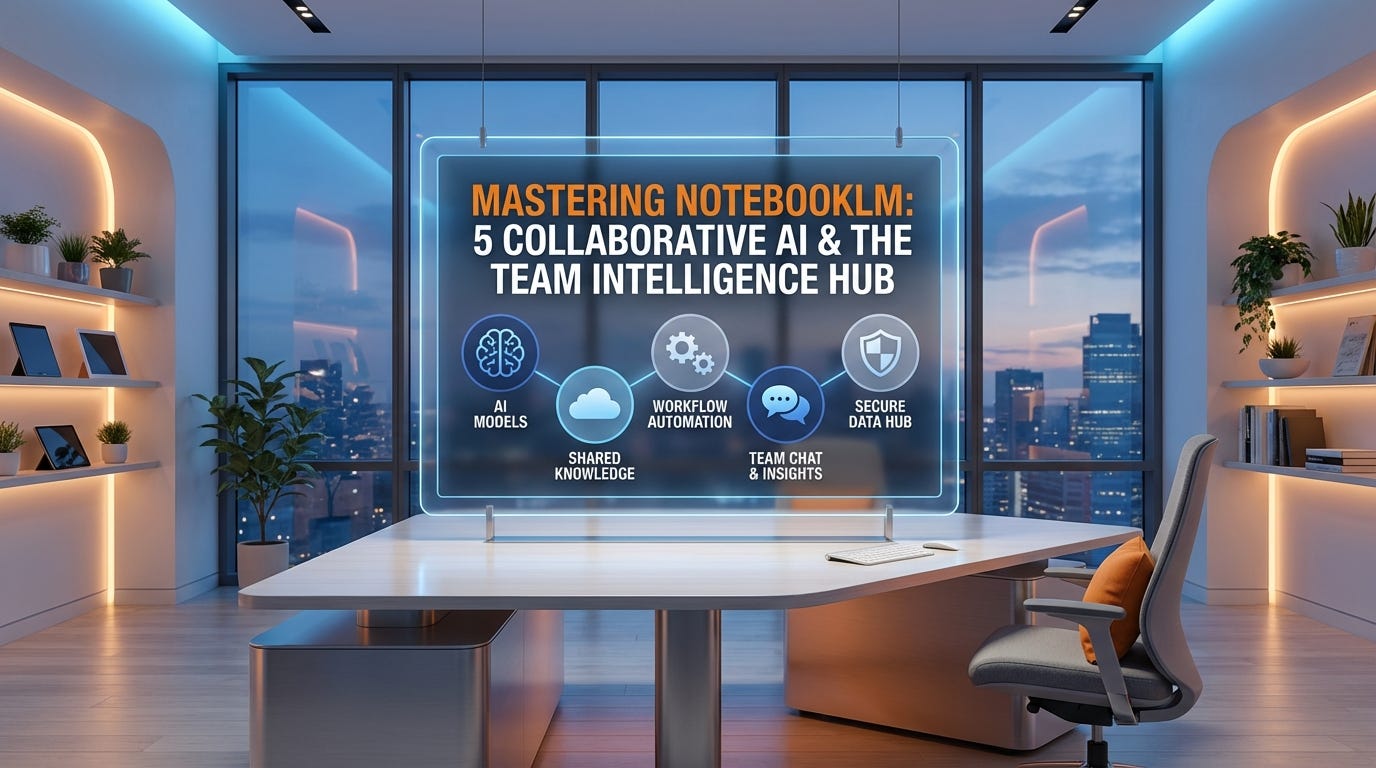
You have built your Knowledge Fortress, deployed your Scouts, and mastered the Studio. But the true power of AI isn’t just making you smarter, it’s making your entire team faster.
In our final masterclass, we explore the social side of NotebookLM. We’re moving beyond individual research and into Collective Intelligence: how to share your notebooks, manage permissions, and build a “Shared Brain” for your company, classroom, or research group.
1. Sharing Your Notebook: Two Ways to Collaborate
Sharing in NotebookLM works similarly to Google Docs, but with a major “Specialist” twist.
The Individual Invite: Click the Share button in the top right. You can invite specific people via their email addresses.
The Access Levels:
Viewer: Can read the sources, chat with the AI, and listen to the Audio Overviews, but they cannot add new files or change your notes.
Editor: Has full “Specialist” power. They can upload new PDFs, delete outdated sources, and trigger new Deep Research tasks.
2. Building a “Shared Brain” for Teams
As an AI specialist, I see this as the ultimate productivity hack for organizations. Instead of every employee reading the same 50-page manual, you create one Master Notebook.
The Corporate Playbook: Upload all company policies and SOPs. New hires can jump in and ask, “What is our policy on remote work?” and get an instant, grounded answer.
The Research Lab: Share a notebook with your fellow students. As one person finds a new paper, they upload it, and the AI instantly updates the “Shared Intelligence” for everyone in the group.
The Multi-User Studio: Editors can collaborate on the Studio Artifacts. One person can generate the Slide Deck, while another refines the Briefing Report.
3. Managing Privacy in a Shared Space
One question I get asked constantly is: “If I share my notebook, can they see my other projects?” * The “Silo” Rule: Sharing is Notebook-specific. When you invite someone to your “Project X” notebook, they have zero visibility into your “Project Y” or your private Google Drive files.
Personal Notes: While sources are shared, your private chat history remains private. However, any Saved Notes in the Studio panel are visible to all Editors, making them the perfect place for team brainstorming.
4. Specialist Strategy: The Collaborative Audit
Before you finish a team project, use the Socratic Tutor prompt we learned in Article 3, but apply it to the team:
“Analyze the notes added by all collaborators and identify any conflicting opinions or data points we need to resolve before the final presentation.”
The Series Wrap-Up: Your AI Research Journey
We have come a long way since Article 1:
The Fortress: You learned to ground AI in your own data.
The Engine: You mastered large datasets and file types.
The Scouts: You deployed Deep Research agents to crawl the web.
The Multimedia Studio: You transformed data into professional Audio Podcasts, Video Explainers, and Slide Decks.
The Learning Studio: You turned research into interactive Mind Maps, Flashcards, and sortable Data Tables.
The Hub: You turned individual knowledge into Team Intelligence through secure collaboration.
Thank you for following this Masterclass series! You now have the full toolkit to act as an AI Specialist in any professional environment.
One final question for the series: Now that you know everything NotebookLM can do, what is the first project you’re going to build? Tell me in the comments, I’d love to see how you use these tools!